
Anyone who runs a business account of any kind has met the six-digit code. You type a password, then you hunt for your phone, squint at a number, and type it in before it rolls over. Microsoft Authenticator exists to make that moment less annoying, and in a lot of cases to remove the code entirely.
The app comes from the developer listed as Microsoft Corporation, sits in the Business category, and does one job with unusual focus: it proves you are you, without leaning on a password alone.
Opening the app and seeing your account list
The first screen is a list. Each entry shows an account name, the associated email or username, and a rolling one-time passcode that refreshes on a thirty-second timer. There is a small circular countdown next to each code, and the number blurs or hides until you tap it, depending on your security settings.
That is the whole interface. No dashboard, no feed, no tips carousel.
Tapping an account opens its detail view, where you find the full code, a copy button, and options specific to that account type. Work and school accounts get extra entries here, things like device registration status. Personal Microsoft accounts get recovery and password management options. Third-party accounts (a GitHub login, an AWS console, a bank) get the plainest treatment: name, code, timer, done.
The approve-a-notification flow is the part people stick around for
The passcode list is the fallback. The main event is push approval.
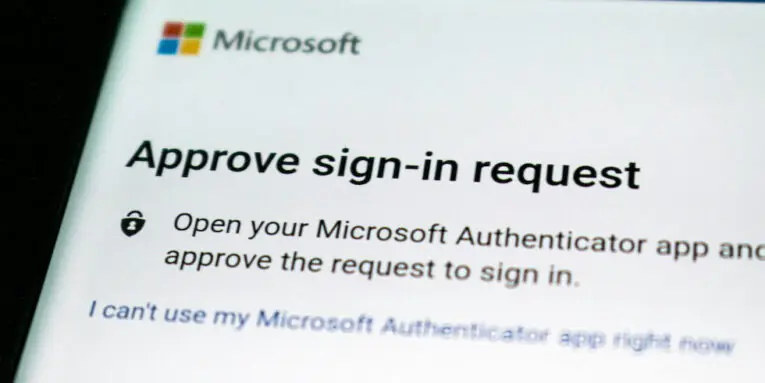
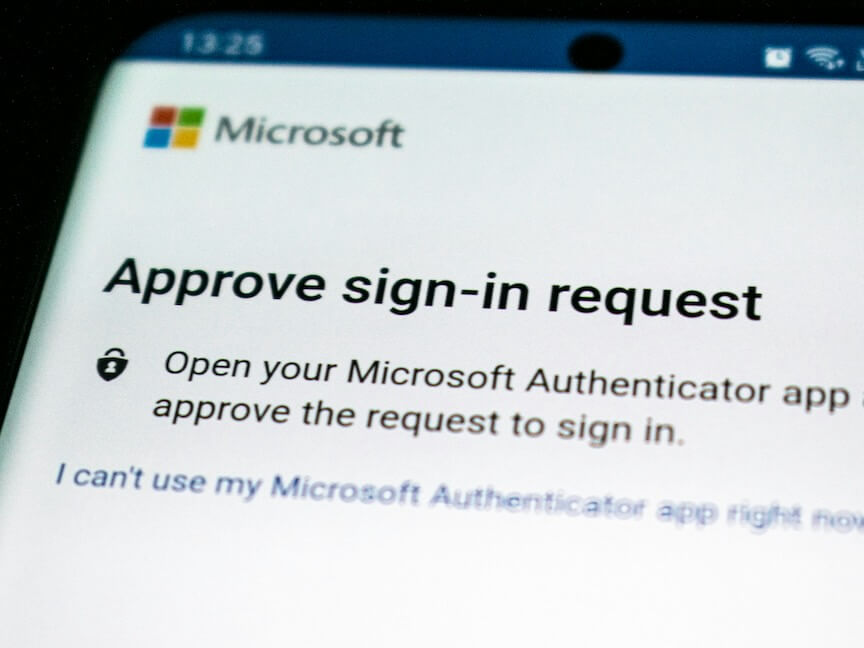
You enter your username on a Microsoft sign-in page, and instead of typing a password, a notification lands on the device running Authenticator. You open it, you see a two-digit number displayed on the sign-in screen, you match it in the app, and you confirm with a fingerprint, a face scan, or a PIN. That number-matching step is there because people used to approve prompts reflexively, and attackers noticed.
The whole thing takes about four seconds when it works. When it does not work, it is usually because a notification got swallowed by a battery saver setting, and the app gives you a manual “I can’t use my Microsoft Authenticator app right now” path back to codes.
What sells people on it is the passwordless option for personal Microsoft accounts. Enter username, approve, in. Outlook, OneDrive, Office, the lot. No password typed at all.
Why some people run Microsoft Authenticator on the desktop instead
There is a real case for running this alongside the browser rather than beside it on a phone. If you spend your day signing into Outlook, OneDrive and a tenant admin portal on one machine, watching a code appear on the same screen where you are about to paste it removes the constant reach-and-squint cycle. That is what drives people to set up Microsoft Authenticator for Windows rather than leave the whole business on a phone. The keyboard also helps during initial setup, when you are entering long recovery keys and account names by hand.
The app is Android and iOS software, so on a PC it runs through an Android environment such as BlueStacks. Camera-based QR scanning is the one thing that behaves differently there, since a laptop webcam pointed at a screen is awkward; the manual entry option, where you paste the secret key directly, becomes the sensible route.
Putting your second factor on the same machine you log in from weakens the “second device” logic that multi-factor authentication is built on. For a low-risk personal account, most people accept that trade. For a privileged admin account, keeping the authenticator on a separate phone is the safer call, and the app supports both without complaint.
Adding a non-Microsoft account takes about twenty seconds
The plus button in the top corner asks what kind of account you are adding: personal, work or school, or other. Choosing “other” opens the QR scanner, and almost every service that supports TOTP will show you a QR code during its security setup.
Scan it, the account appears in the list, the codes start rolling. Done.
Services that hide the QR behind a “can’t scan?” link give you a text secret instead, and Authenticator accepts that through manual entry. The app does not care whether the account is Microsoft’s. A Google Workspace login, a Dropbox account, a domain registrar, all of them land in the same list and behave identically.
The mild irritation is organization. Once you pass fifteen or twenty accounts, the list is just a list, and reordering entries means a long-press and drag that is fiddlier than it should be. Naming discipline at setup time saves you later.
Backup, recovery, and the thing people forget
Losing your phone with an authenticator on it used to be a genuine disaster. Authenticator addresses this with cloud backup tied to a personal Microsoft account, storing account credentials so you can restore them on a new device.
The caveat is that the coverage is not identical across platforms and account types, and work or school accounts often need to be re-registered through your organization rather than restored. Anyone managing a company’s rollout should tell staff that upfront, because the alternative is a help desk ticket at the worst possible moment.
There is also an autofill component, where the app stores passwords and fills them in on mobile browsers and apps, synced through the same Microsoft account. It is competent rather than exciting, and it makes more sense if you already live inside Edge and the Microsoft ecosystem.
How it feels to use day after day
Fast, mostly invisible, occasionally pedantic. The number-matching prompt adds a beat to every sign-in, and after the fiftieth time you notice it. Then you remember why it is there.
The app locks itself behind biometrics or a PIN if you enable app lock, which you should, since an unlocked authenticator on a lost device defeats the point. Cold start is quick. Codes generate offline, which matters more than people expect: TOTP is time-based, not network-based, so a plane or a dead hotel Wi-Fi does not lock you out.
For a small business owner, the honest value is not the technology. It is that “approve the notification on your phone” is an instruction you can give a new hire without a training session, and it holds up against the credential-stuffing attacks that make up most account compromises.
Which brings back the four-second sign-in. Username, notification, matched number, thumb on the sensor, into Outlook. When two-factor authentication stops feeling like a tax, people stop trying to switch it off, and that is the part that protects the business.
People also read this: What a Total Roof Replacement Process Covers From Start to Finish
